
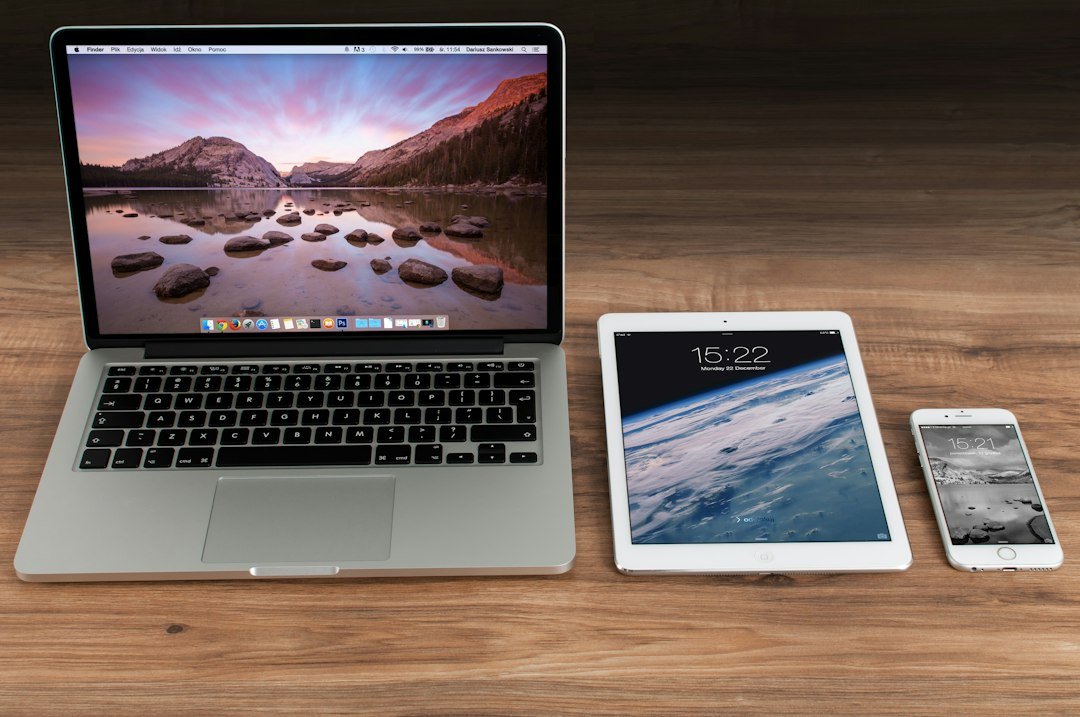
Clearing Out Old Phones and Computers

An old laptop can stay in a cupboard for years because of one reasonable question: “What is still on it?” A spare phone may hold family photos, a sign-in code, or the only working connection to an account you rarely use.
That uncertainty deserves a short plan. The physical device can leave once the information and access you need have a safe home, the manufacturer’s handoff process is complete, and a real recipient or recycling destination is confirmed.
The Federal Trade Commission, device manufacturers, and the Environmental Protection Agency provide the specialist guidance linked here. Organize-Declutter brings those steps together into a manageable household project.
Start with one device and one destination
Choose a single phone, tablet, or computer. Put its charger beside it and record the model, owner, and intended destination. If it belongs to an employer, school, or another person, contact the owner before resetting or disposing of it.
Decide what is blocking progress:
- You need files or photos from it.
- You still use it for verification or account recovery.
- You do not know how to erase it.
- You have not found a place that accepts it.
Those are different tasks. Give the unresolved task a name and a next action instead of returning the device to an unmarked box.
If you may keep using the computer, check its current support status first. Microsoft’s Windows security update guidance explains the available extended support arrangements for eligible Windows 10 computers. Read the live eligibility and enrollment rules; old articles and remembered deadlines may be out of date. A decision to keep a computer should include its actual purpose and support needs.
Save what matters and verify the copy
The FTC’s guides for computers and phones put saving needed information before disposal.
Make a short list of what you want: photographs, documents, contacts, messages, or information held inside particular apps. Use the relevant provider’s backup or transfer instructions. Do not assume that copying a photo folder also saves messages or everything stored by an app.
Then check the result on the replacement device or backup location. Open a few photographs and documents that matter. Confirm that the important app information is available. Label the saved location so you will remember where the files went.
This is a useful place to ask a trusted helper or technician for a limited job: “Help me confirm that these files are safely copied before we erase this computer.” A specific request makes completion easier to verify.
Move account access before erasing
The FTC’s phone guidance reminds readers to address multifactor authentication before getting rid of a phone. A device that looks unused may still receive verification codes or hold an authenticator app.
On your replacement device, use each important service’s approved instructions to set up sign-in and recovery. Test access to your primary email and other essential accounts while the old device is still available. Follow the provider’s instructions for transferring authenticator information; apps and accounts can work differently.
Keep recovery material in protected storage. A general device checklist can say “email access tested” without containing passwords or backup codes. Our password and digital account guide explains the broader organizing system.
Do not erase first and hope that account recovery will be straightforward afterward.
Use the official process for your device
Different devices require different handoff steps. Follow the current official page that matches your equipment and software.
| Device | Expert instructions | Point to notice |
|---|---|---|
| iPhone or iPad | Apple: before selling or giving away | Back up or transfer, then follow Apple’s account and erase steps. |
| Android phone | Google: factory reset guidance | Check backups and the manufacturer’s model instructions; resolve account protection before a handoff. |
| Windows computer | Microsoft: reset your PC | “Keep my files” and “Remove everything” serve different purposes. Read the options carefully. |
Apple specifically warns that manually deleting contacts, photographs, or other information while signed in to iCloud can also delete it from iCloud and connected devices. Use Apple’s complete handoff process rather than trying to empty a phone item by item.
Google explains that a factory reset erases local phone data; some information can be restored from the Google Account, but apps and their data are removed. Verify the backup you need. Google’s separate device-protection guidance explains how removing your Google Account from the device turns off that protection. Follow the instructions for your model so the intended recipient can set up the phone.
Microsoft describes the “Remove everything” option and a data-cleaning setting intended for selling, donating, or recycling. It also says this consumer feature does not meet government or industry data-erasure standards. Do not treat a reset as a universal guarantee for sensitive business records or a special security requirement. Ask the appropriate IT professional about those cases.
When you cannot unlock or start it
A broken screen, forgotten password, or dead computer changes the job. Stop and ask the manufacturer or a reputable data-erasure service what can be done for that model. Explain whether saving data or removing it is the priority.
Before handing over equipment, ask what the service will do, what it costs, whether storage is removed or sanitized, and what completion record it provides. Keep the device securely until that question is resolved. A recycling appointment alone does not establish that the data has been handled.
Avoid homemade destruction instructions from comments or videos. Seek a suitable service instead of improvising with tools or opening a damaged battery.
Confirm where the device will actually go
The EPA’s electronics donation and recycling guidance advises removing personal information and checking appropriate donation or recycling options. Devices with lithium-ion batteries should not go into household trash or ordinary recycling bins.
Contact the recipient or collection program before leaving home. Ask whether it accepts your model, its condition, and any damaged battery; follow its handling instructions. A donation organization may need functioning equipment with usable software, not simply a box of old devices.
If a phone uses a physical SIM or removable memory card, address those separately following the maker’s instructions. An eSIM needs its own provider or device process. Put accepted accessories with the device and remove labels containing personal information.
Next step: Finish one device through four checkpoints: needed information saved, access tested, handoff process completed, and departure confirmed. Record the date and destination. That is one fewer unresolved object in the cupboard.
Sources and useful resources
- FTC: prepare a computer for disposal — backup and personal information basics.
- FTC: prepare a phone for disposal — data, verification, and removable cards.
- Apple: before selling, giving away, or trading in an iPhone or iPad — current Apple handoff instructions.
- Google: reset an Android device — backup requirements and links to model-specific help.
- Google: Android device protection — ownership verification and removing device protection for a handoff.
- Microsoft: reset your PC — reset choices and consumer erasure limitations.
- Microsoft: extended security updates — live Windows 10 support and enrollment information.
- EPA: electronics donation and recycling — disposal destinations and battery cautions.
Information checked October 10, 2026. Follow the current instructions for your exact device and circumstances.